
Timesheets & Team Approvals
TIMESHEETS & TEAM APPROVALS
Clock in.
Get to work.
Make time count.
From the first tap in the driveway to the last job of the day, keep your team’s hours clear, connected, and ready to review.

A WORKDAY YOU CAN READ AT A GLANCE
Your hours.
Right in front of you.
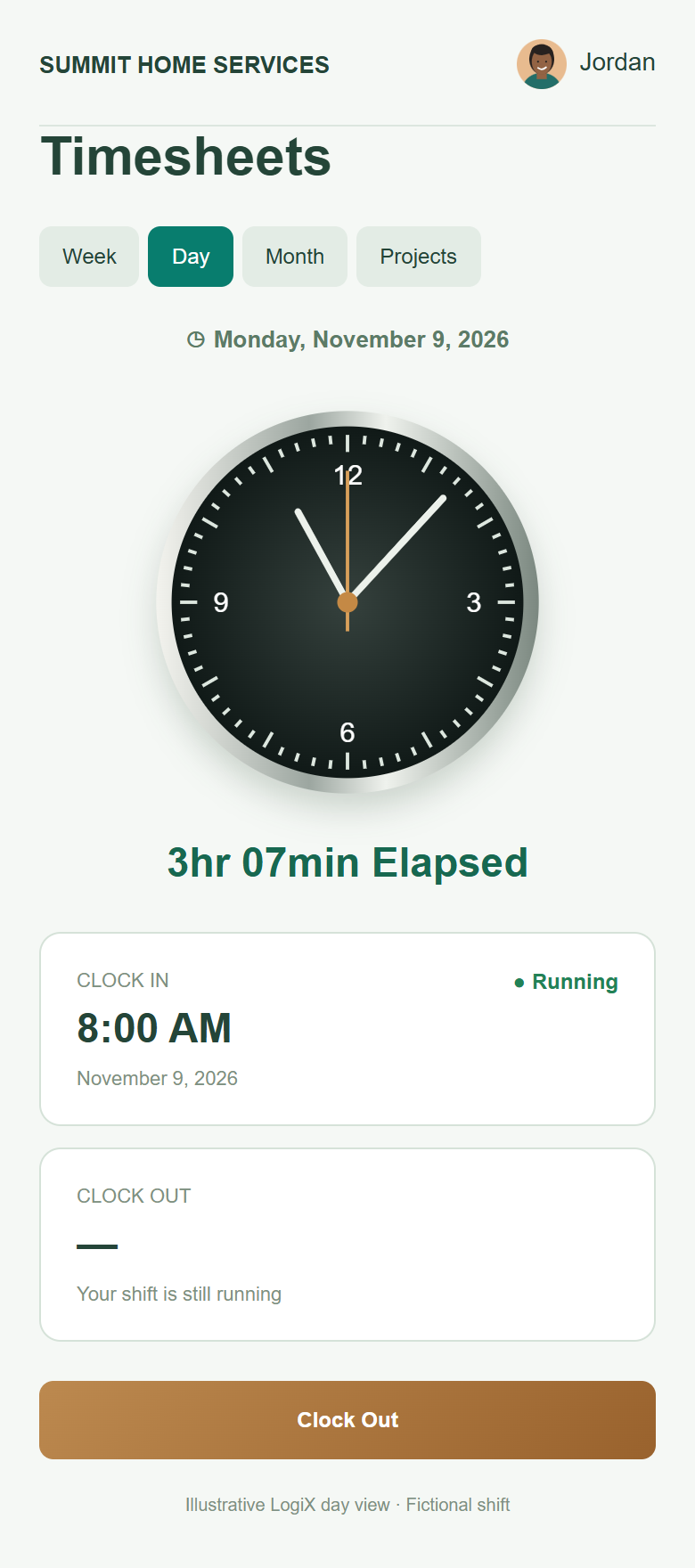
A distinctive day clock puts elapsed time where it belongs: front and center. Clear clock-in and clock-out times, with dates underneath, make each shift easy to understand.
A clear start and finish
Clock in when the workday starts and clock out when it ends. An active shift shows elapsed time without a Pending label.
Every selected day tells its story
Choose a day from the week to review its recorded hours and status, instead of guessing which shift you’re looking at.
Illustrative mobile screen with fictional shift data.
FROM INDIVIDUAL HOURS TO TEAM OVERSIGHT
The whole week.
A clearer review.
Administrators can open Team timesheets, filter by employee, and review completed days for approval. Keep the names, hours, and status together in one place.
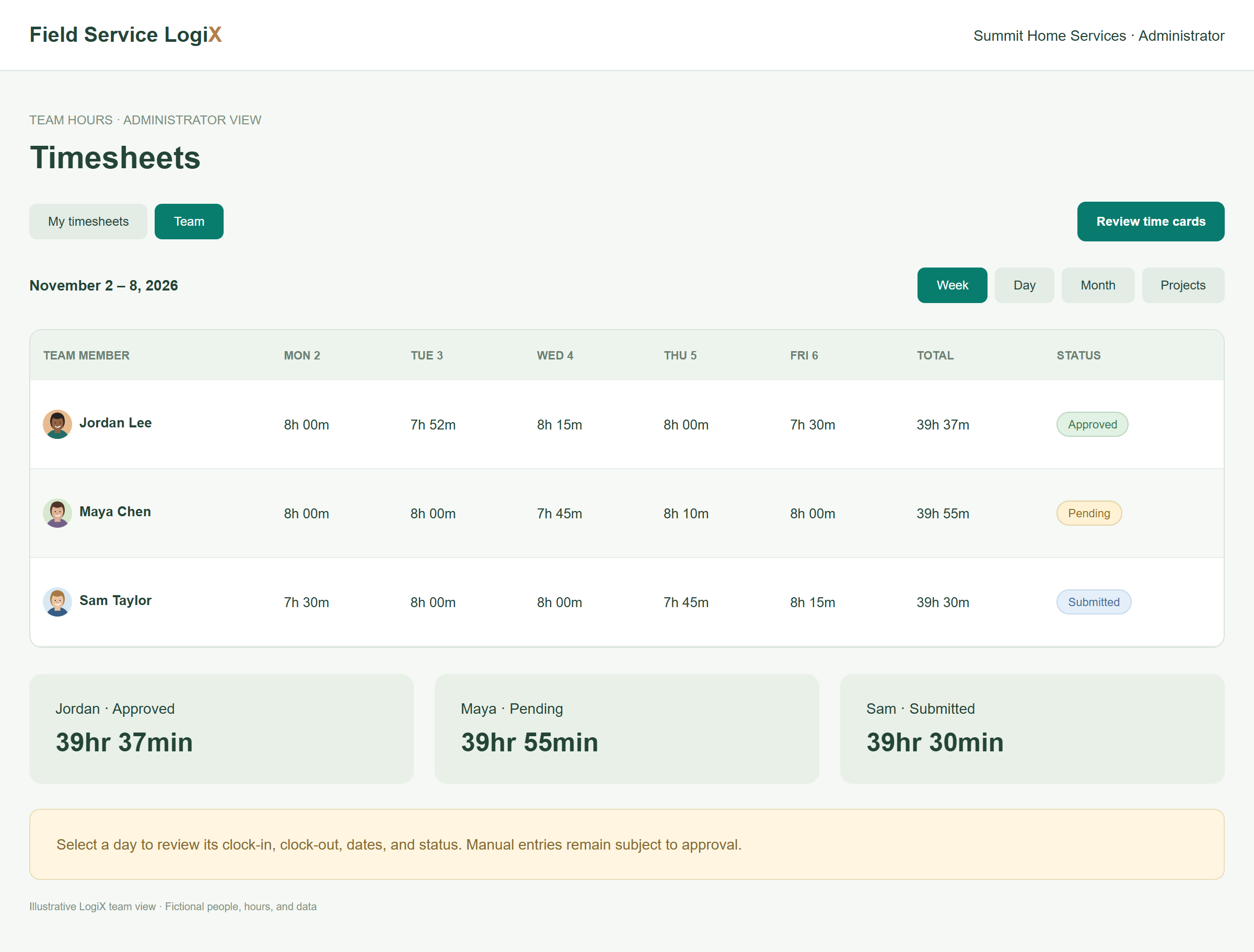
Illustrative team overview with fictional data.
Week, day & month
Move between detailed shifts and broader periods as you review time.
Team review
Select an employee and inspect their completed days before approval.
Project time
Use the Projects view to review time in the context of your work.
STATUS THAT SAYS WHAT IT MEANS
Know what’s running.
Know what needs a review.
The clock is running.
Show time accumulated so far while the shift remains open.
The shift is complete.
After clock-out, recorded time is submitted for review.
A change needs attention.
Employee adjustments and manual entries remain subject to approval.
The time is reviewed.
Approved days clearly show their accepted status.
MISSED A CLOCK-IN? KEEP THE CONTEXT.
Correct the record.
Keep the review.
Manual Entries let users enter a missing clock-in and clock-out with an explanation. Clear dates and AM/PM values make corrections easier to check.
The entry is subject to approval, so a correction stays visible to the person reviewing the time.
Jordan Lee
- CLOCK IN
- 8:00 AM November 6, 2026
- CLOCK OUT
- 3:30 PM November 6, 2026
“I forgot to clock in before the first service visit. These are my actual start and finish times.”
Illustrative entry · 7hr 30min · Pending
ONE CONNECTED WORKDAY
Plan the work. Record the time.
Keep the team in view.
Daily time tracking
See the current shift and the recorded hours for a selected day.
Approval controls
Help administrators distinguish submitted, pending, and approved time.
Connected scheduling
Plan jobs alongside team PTO and company holidays.
Clear corrections
Give manual entries an explanation and a review step.
BEFORE THE NEXT CLOCK-IN
A few good
questions.
Can technicians clock in on their phones?
Yes. LogiX’s mobile workspace includes clock-in and clock-out controls and a Day timesheet view.
Does a running shift show Pending?
No. While a shift is running, the day clock shows elapsed time. Approval status applies to completed or adjusted time entries.
What if someone forgets to clock in?
A manual entry can record start and finish times with an explanation. Manual Entries are subject to approval.
Can administrators review the whole team?
Yes. The Team section lets administrators review employee time cards and select completed days to approve.
What happens when an employee edits their times?
The adjusted entry is marked Pending so it can be reviewed before approval.
Can I review more than one day?
Use Week and Month views to review a broader period, or choose Day for individual shift details. The Projects view provides another perspective on recorded work.
LESS CHASING HOURS. MORE CLARITY.