
Scheduling & Team Availability
SCHEDULING & TEAM AVAILABILITY
A clear plan for the work.
Room for the people.
Bring jobs, recurring visits, PTO, and company holidays into the same picture. Give your office a clearer week—and your crew a better start to every day.
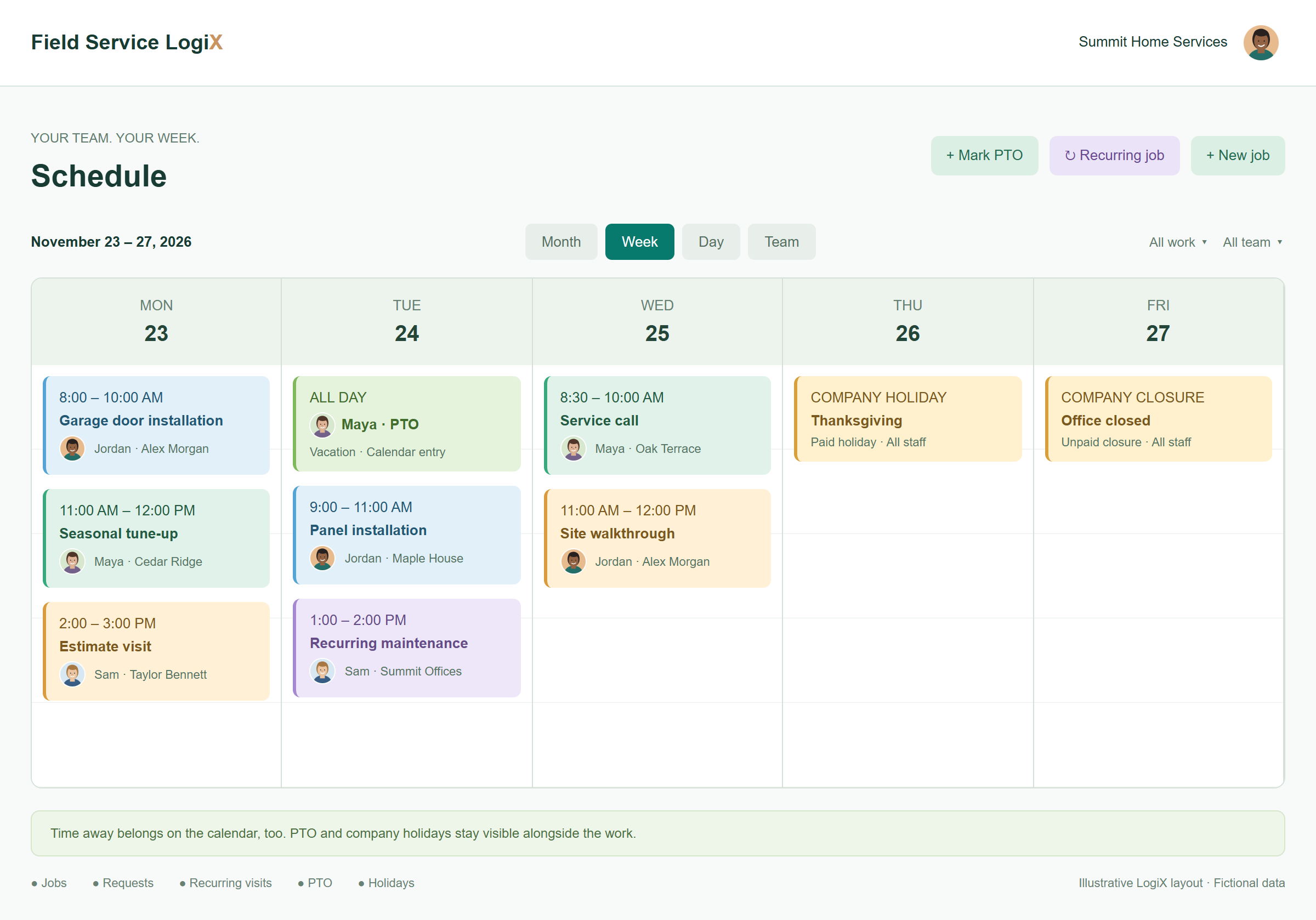
A SCHEDULE THAT MOVES WITH YOU
Plans change.
Your calendar keeps up.
A new time. A different teammate. Another day. Move a visit, review the details, and save your updated plan.
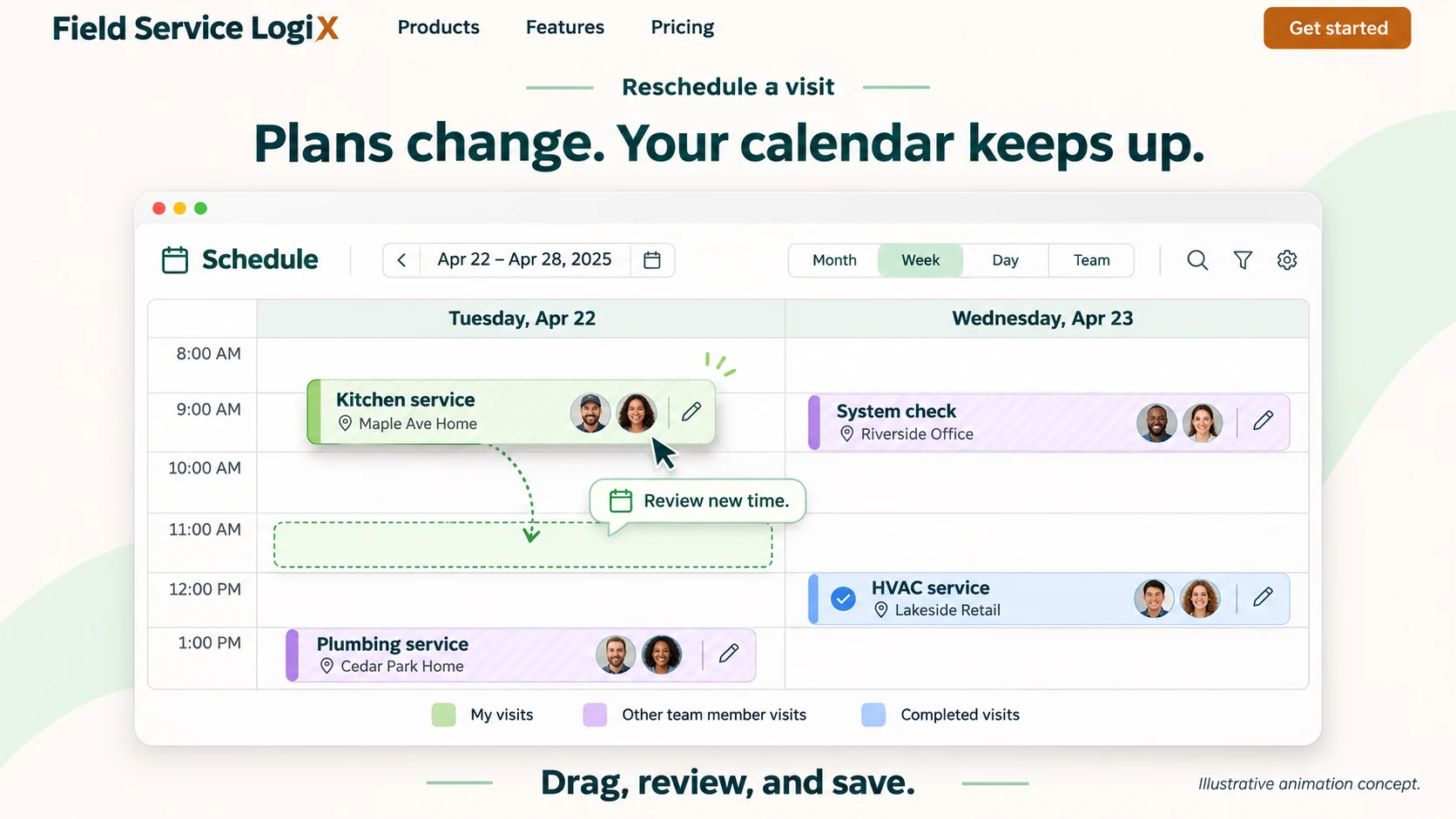
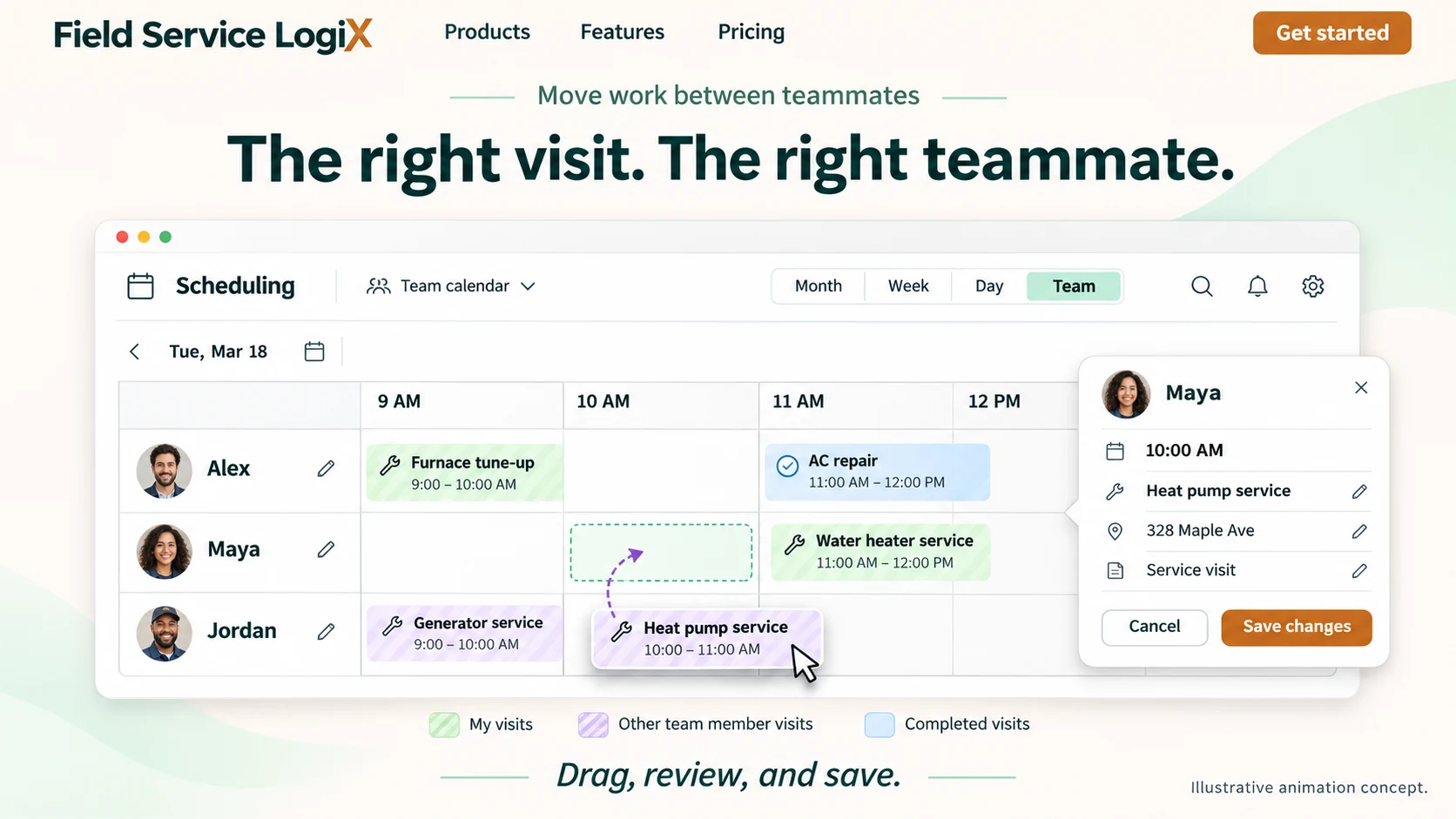
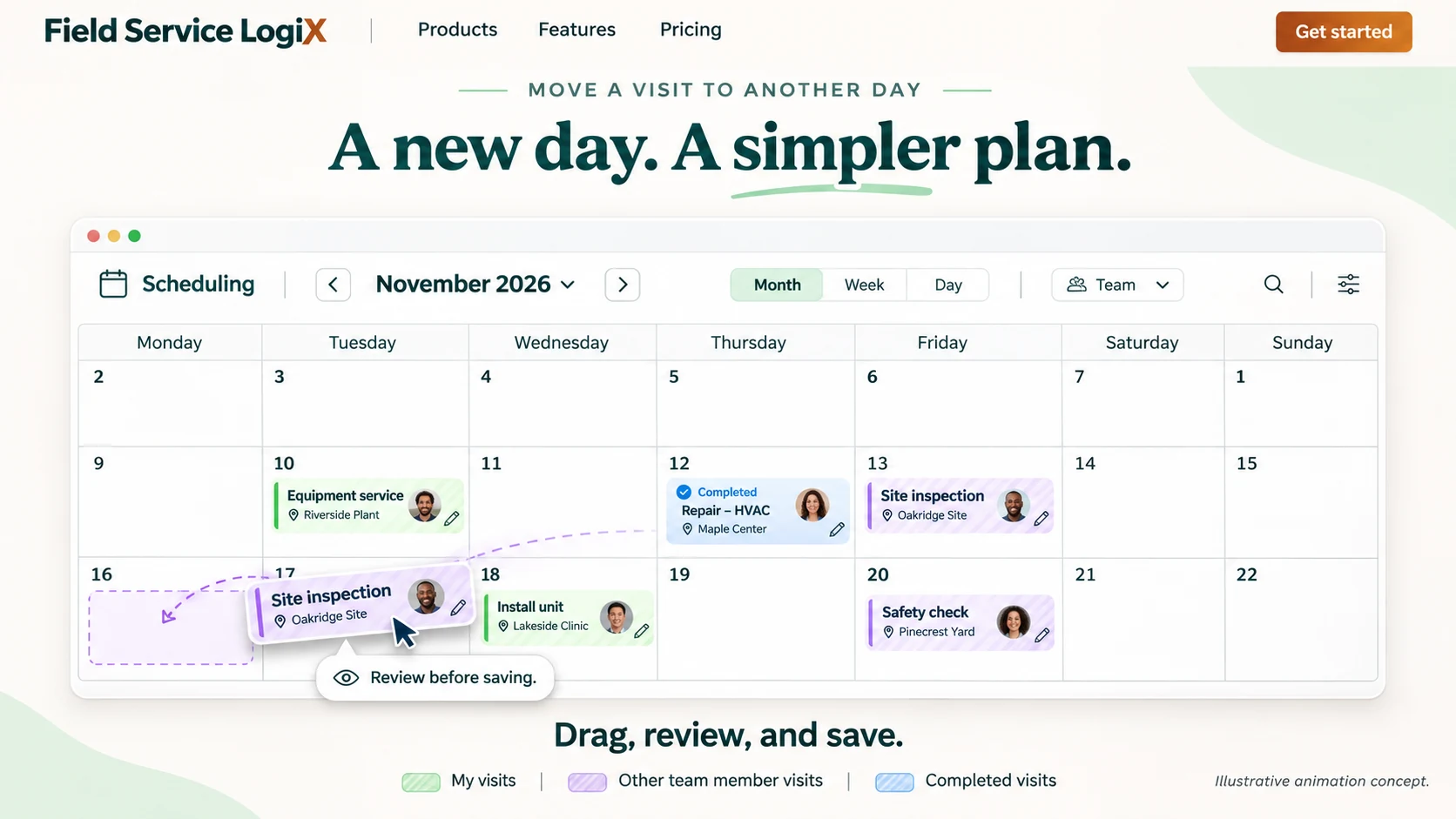
1 of 3 · Change time
SEE THE MOVE, FROM START TO SAVED
A smoother way to reshape the day.
Press Play to see a visit move from 9 AM to 11 AM, followed by review and confirmation.
Illustrative previews with fictional data. The animation demonstrates the workflow and does not change a live schedule.
YOUR CALENDAR SHOULD UNDERSTAND YOUR TEAM
Schedule the jobs.
See the days off.
A full calendar doesn’t tell the whole story. LogiX puts time away alongside customer work, so you can plan with the people you actually have available.
Keep PTO out of the guesswork.
Administrators can mark a team member off, choose the date, and add a note. The entry appears on the calendar and is applied to their PTO balance.
Illustrative balance. Administrators manage PTO allowances and review accrued, taken/reserved, and paid-out days in team settings.
One company. One clear calendar.
Add a holiday once as an all-day event for every staff member. Choose a paid holiday or an unpaid closure, include a staff note, and repeat it annually when appropriate.
Company closure · November 27Unpaid closure · All staff
Staff note: Office closed for the holiday weekend.
Company holidays reflect your own operating calendar and pay policy.
BIG PICTURE TO NEXT STOP
The right view.
For the way you plan.
Look ahead across the month, organize the week, or focus on today. Use the team view to review workload and filter work to the perspective you need.
See what’s coming.
Review the month’s scheduled work and time away before shaping the next week.
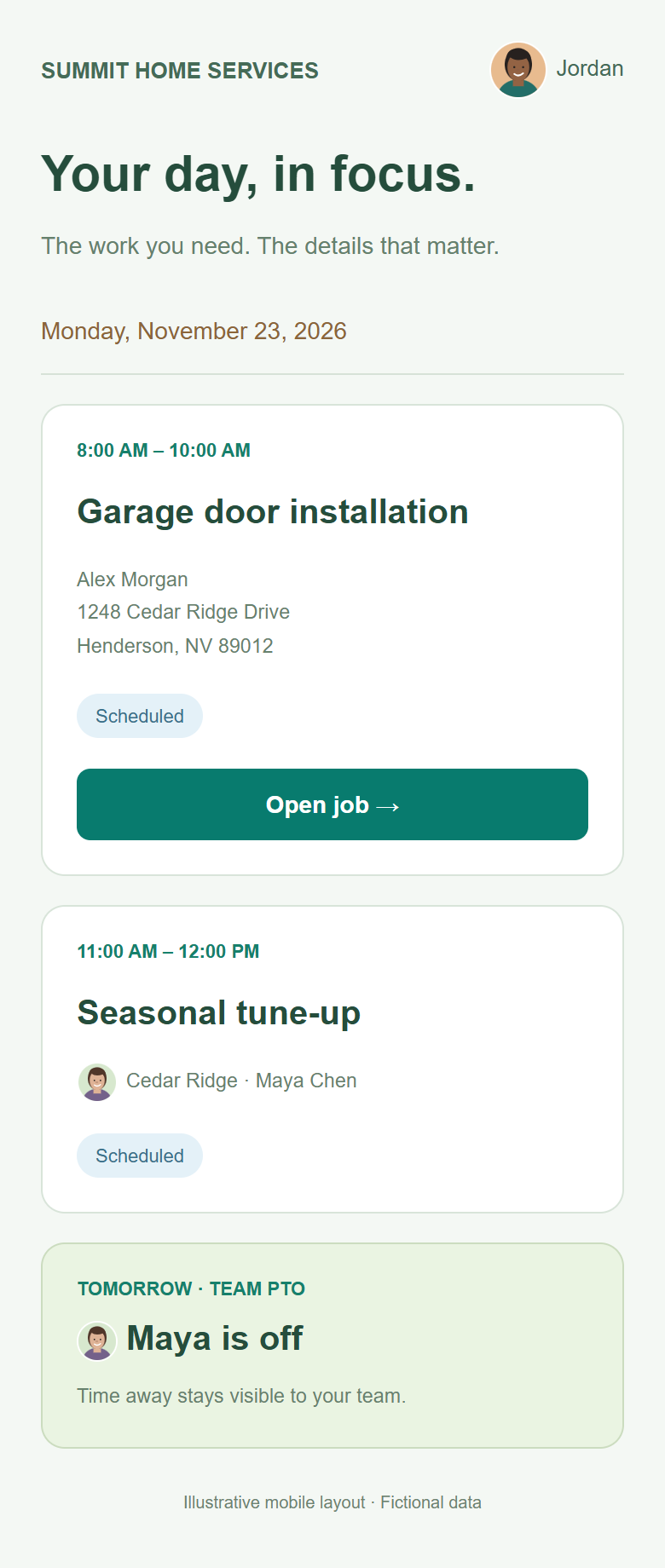
Explore the view descriptions above. The mobile example is an illustrative layout, not a live account.
FROM APPROVED WORK TO A WORKABLE WEEK
Give every job a place.
Keep its details together.
Turn approval into a plan.
Schedule approved quotes as jobs with the customer and service property attached. Keep the work tied to the address the customer approved.
Explore quotes & approvals ↗Make recurring work easier.
Create recurring jobs for repeat customer visits. Use job templates to reuse familiar work, such as a service call with two hours of labor.
Reschedule with confidence.
Move a job’s scheduled date as plans change. A schedule-only change preserves the quote approval; scope or pricing changes follow the Change Request workflow.
LESS SEARCHING. MORE DOING.
The schedule is where the day starts.
The job is where the work happens.
Timesheets
Keep recorded hours and shift approvals alongside your team’s work.
Service properties
Keep each job connected to its customer and selected service address.
Photos & media
Document the work and keep the visual record connected to the customer and job.
Job follow-through
Open the job to review its details and move work through the next steps.
THE DETAILS THAT MAKE A DIFFERENCE
Built for the whole workweek.
Month, week, day & team
Choose a planning view that fits the task in front of you.
Work filters
Narrow the calendar to all work, your work, or other team members’ work.
Jobs, tasks & requests
Bring different kinds of scheduled activity into the planning picture.
Administrator PTO controls
Add a team member’s time away and an optional note.
PTO balance visibility
Review accrued, used/reserved, remaining, and paid-out days.
Company-wide holidays
Show an all-day holiday across your staff calendar.
Paid or unpaid closures
Identify how your company treats a day away from normal operations.
Annual holiday repeats
Repeat a company holiday yearly when that pattern fits your policy.
Recurring jobs & templates
Prepare repeat work without starting every job from an empty form.

A BETTER START TO EVERY DAY
Show up organized.
Get on with great work.
Bring your office and field team together with a schedule that accounts for the work—and the people behind it.
GOOD QUESTIONS. CLEAR ANSWERS.
Planning your
next workweek?
Can I show PTO on the schedule?
Yes. Administrators can select a team member, choose a PTO date, and add a note. The day appears on the calendar and is applied to the member’s accrued balance.
Can everyone see company holidays?
Company holidays are all-day events shown for every staff member. Administrators can mark them as paid holidays or unpaid closures and add a staff note.
Can a holiday repeat every year?
Yes. The company holiday form includes an annual-repeat option. Review dates for holidays that change each year before setting up your company calendar.
Does rescheduling remove a customer’s signature?
A schedule-only change preserves the approval. Changes to the agreed scope or pricing are handled separately through Change Requests.
Can I reuse the same service job?
Use recurring jobs for repeat visits and job templates for reusable scope and line items. Select the appropriate customer and property for the new work.
Can my team use the schedule on their phones?
LogiX supports mobile use, with schedule access and job details based on each user’s role and permissions.